
How to Edit an Odoo Dashboard With AI: 2026 Guide
Edit an Odoo dashboard with AI in 5 steps: developer mode, JSON export, Aidoo MCP connector. A step-by-step guide for beginners, no code.

Your Odoo dashboard does not show quite what you need: a metric is missing, a chart per manager, a margin column. Usually, that means opening a ticket, waiting for a developer, sometimes paying for a service. This guide shows a different method: describe the change in plain English to an artificial intelligence, which rewrites the dashboard for you. No line of code, five steps.
In short
- Odoo is a business management software (ERP) that includes a spreadsheet and dashboard module, Odoo Spreadsheet.
- You export a dashboard as a JSON file (a machine-readable text format) from the File menu, once developer mode is on.
- An MCP (Model Context Protocol) lets an AI such as Claude read and write that file safely.
- With the Aidoo connector, you request the change in plain language, then put back the adjusted spreadsheet into Odoo.
- The result: a dashboard update in minutes, with no developer.
Table of contents
- Why editing an Odoo dashboard takes time
- Your spreadsheet becomes a file the AI understands
- Step 1: Turn on developer mode in Odoo
- Step 2: Download the dashboard as JSON
- Step 3: Connect your Odoo to AI with the Aidoo MCP
- Step 4: Describe the change to the AI
- Step 5: Put the adjusted spreadsheet back into Odoo
- FAQ: your questions answered
Why editing an Odoo dashboard takes time
Imagine you handle 200 quotations a month in Odoo. Your manager asks for a chart of revenue per salesperson, next to the hours logged. On paper, that is simple. In practice, it assumes you know the spreadsheet module, the formulas, and sometimes Odoo's internal structure.
An ERP (Enterprise Resource Planning) centralizes your sales, purchases, accounting, and human resources in one database. Odoo is among the most widely used: according to its official page, it claims millions of users across more than 120 countries. That richness has a downside: customizing a view often requires a technical skill.
Turning to artificial intelligence shifts the balance. According to the State of AI 2025 study by McKinsey, 71% of organizations already use generative AI in at least one function, up from 65% in early 2024.
📌 Keep in mind Editing a dashboard should not depend on a developer's schedule. With the right method, it becomes a user task, not a technician's.
Your spreadsheet becomes a file the AI understands
For an AI to edit your dashboard, you first need to make it readable for the machine. That is the role of the JSON format (JavaScript Object Notation): a structured text file describing every cell, chart, and metric in your spreadsheet.
Odoo Spreadsheet, Odoo's spreadsheet module presented on the official product page, can export a dashboard in that format. You get a dashboard.json file that holds the full logic of your view.
The remaining challenge is handing that file to the AI without tedious copy-pasting. This is where the MCP (Model Context Protocol) comes in, an open standard published by Anthropic in November 2024 and described in its official announcement. The MCP links an AI assistant to your business tools through a single, secure channel. In practice, Aidoo is the connector that exposes your Odoo to AI through the MCP, the same principle detailed in our guide on connecting Odoo to Claude via MCP.
💡 Tip You do not need to understand JSON line by line. Think of it as the "blueprint" of your dashboard: the AI reads it, you describe the change, it rewrites the blueprint.
Step 1: Turn on developer mode in Odoo
Developer mode (also called debug mode) unlocks technical options hidden by default, including the JSON export. Rest assured: turning it on changes nothing in your data. It simply makes certain menus visible.
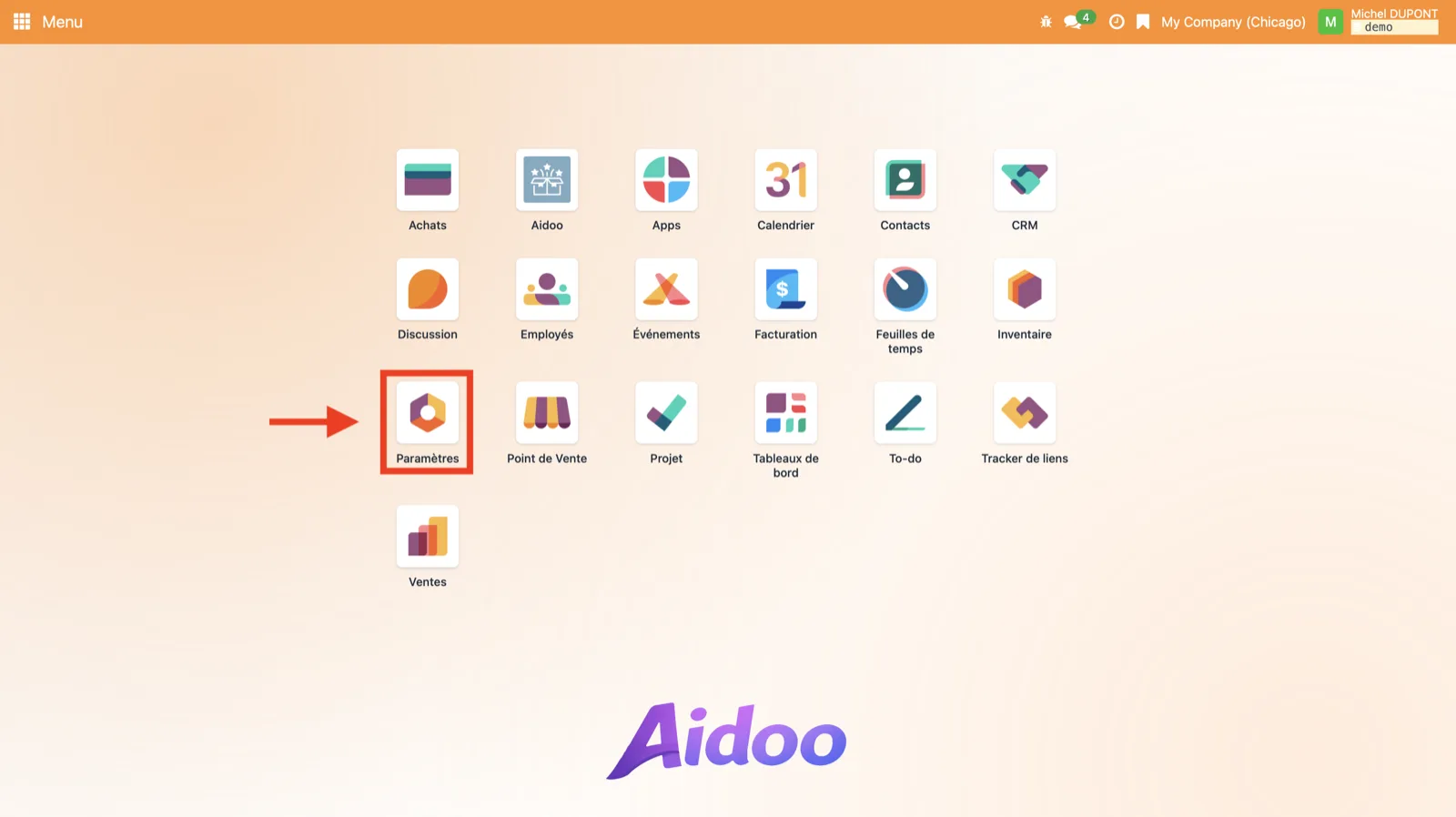 From the main Odoo menu, open the Settings app.
According to the official Odoo documentation, scroll to the Developer Tools section, then click Activate the developer mode.
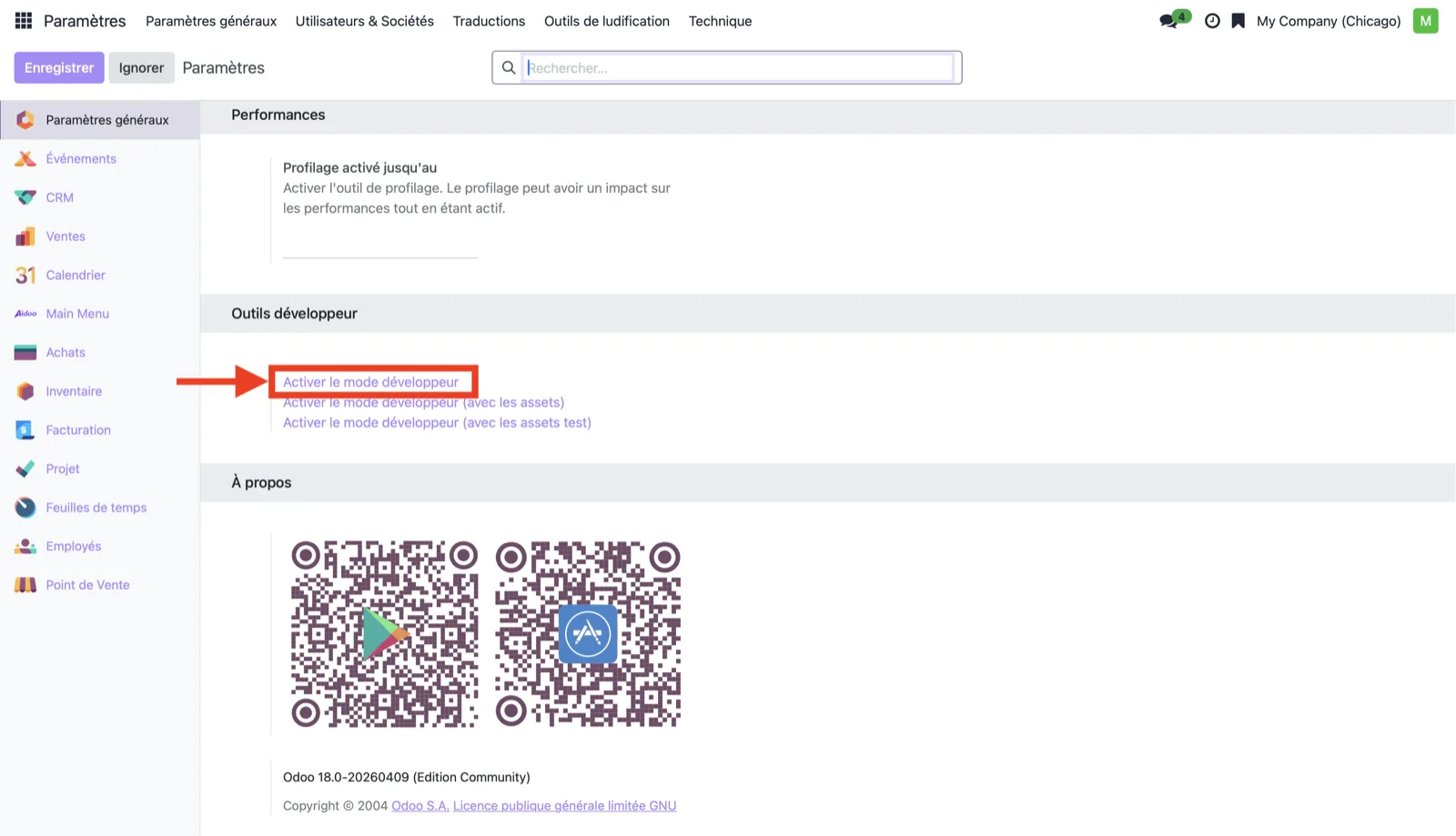 Developer Tools section: click "Activate the developer mode".
Two shortcuts also exist: add ?debug=1 at the end of your page address, or open the command palette with Ctrl + K (or Cmd ⌘ + K) and type debug.
⚠️ Avoid Do not touch the other technical settings exposed by this mode unless you know their effect. Here, you only need the JSON export.
Step 2: Download the dashboard as JSON
Once developer mode is on, open the dashboard you want to edit from the Dashboards app.
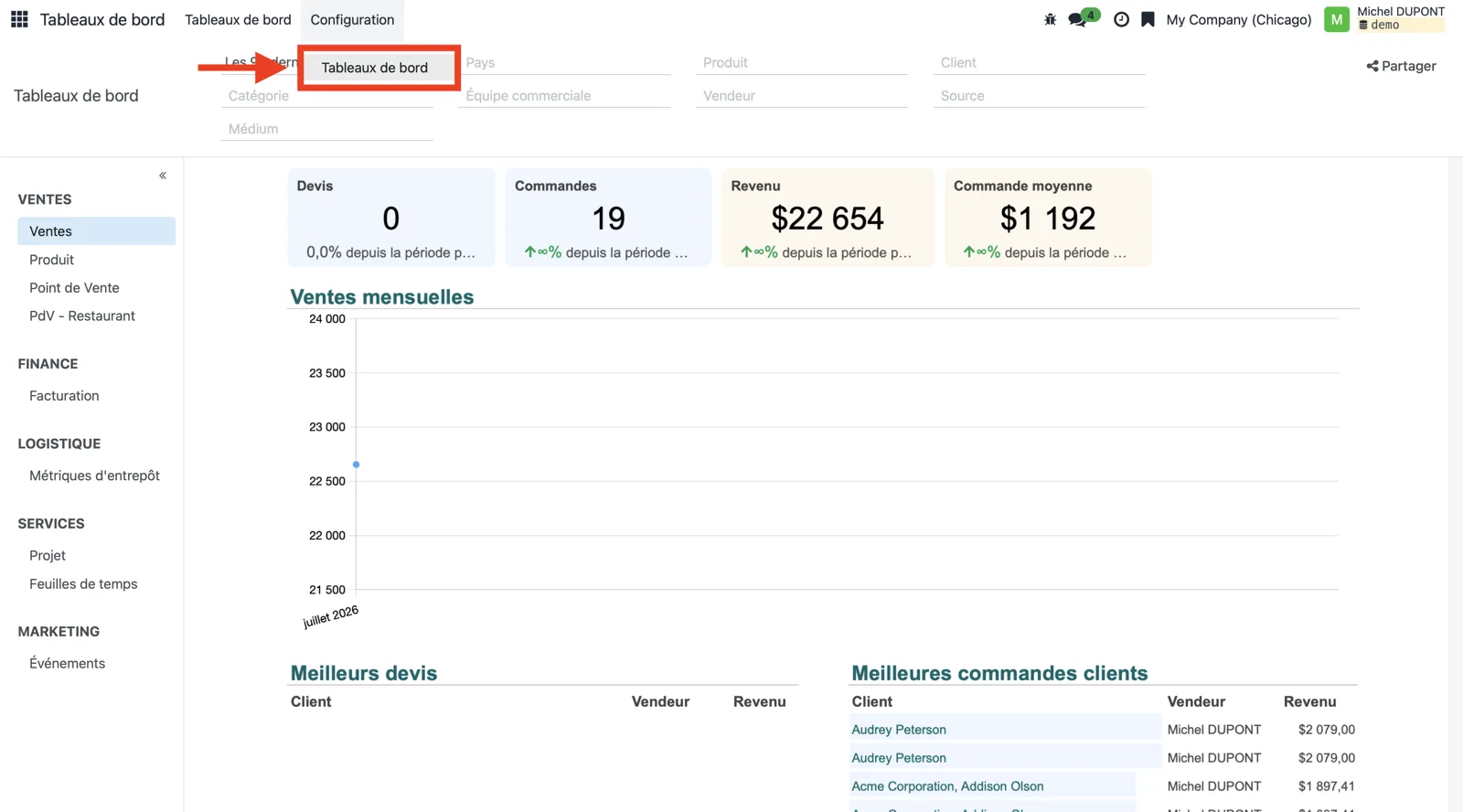 Open the dashboard you want to export from the Dashboards app.
In the spreadsheet view, the File menu now shows an extra option. Click File → Download as JSON.
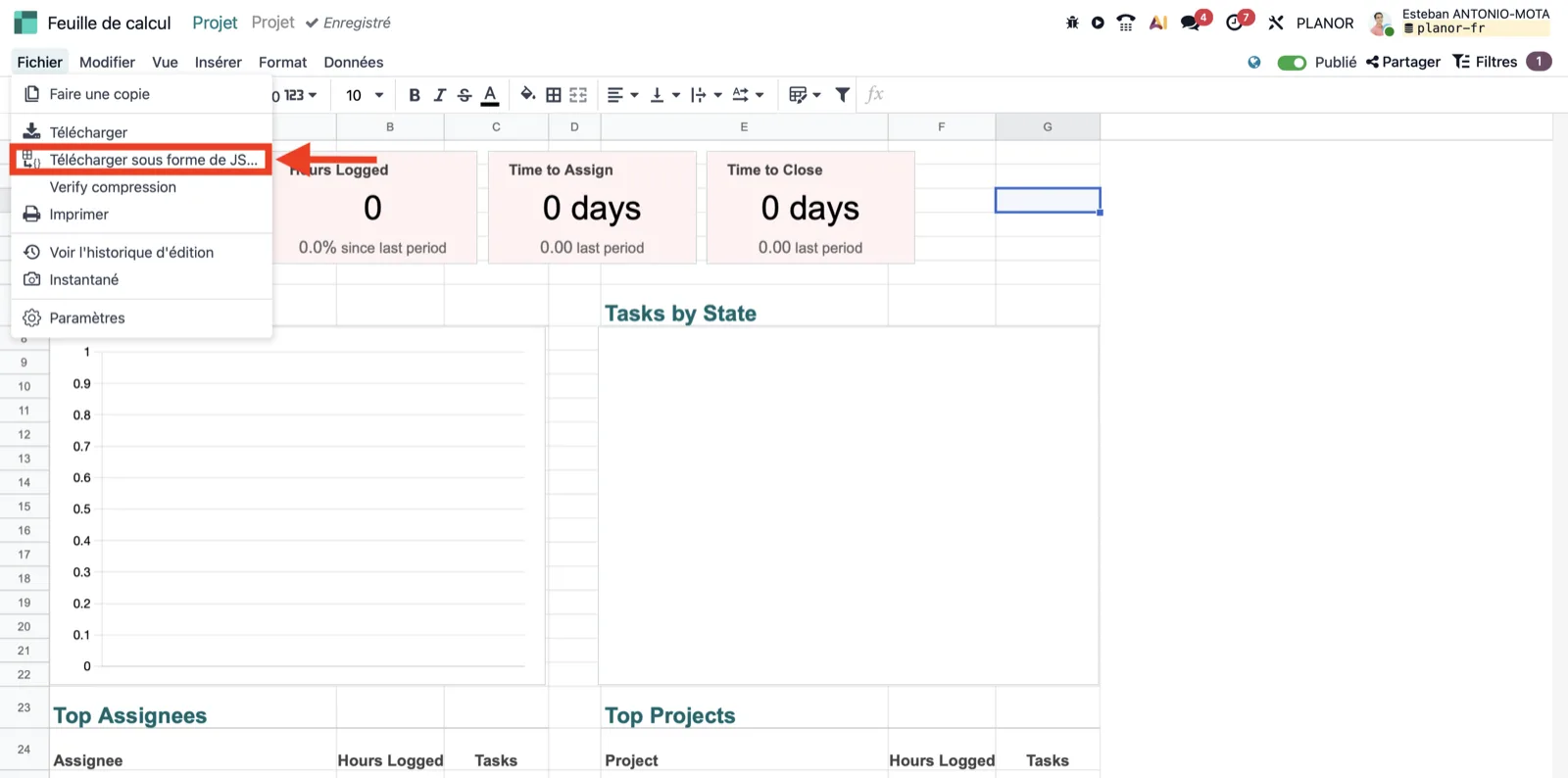 File → Download as JSON, visible only in developer mode.
Odoo then generates the dashboard.json file in your downloads folder. It holds your metrics, charts, and tables, ready to be read by the AI. This capability is confirmed by the Odoo spreadsheet documentation.
Step 3: Connect your Odoo to AI with the Aidoo MCP
For the assistant to work with your data, you need a bridge between Odoo and the AI. That is the role of the Aidoo connector, which acts as an MCP server. Setup happens once. Once connected, a check command such as /mcp shows the server status.
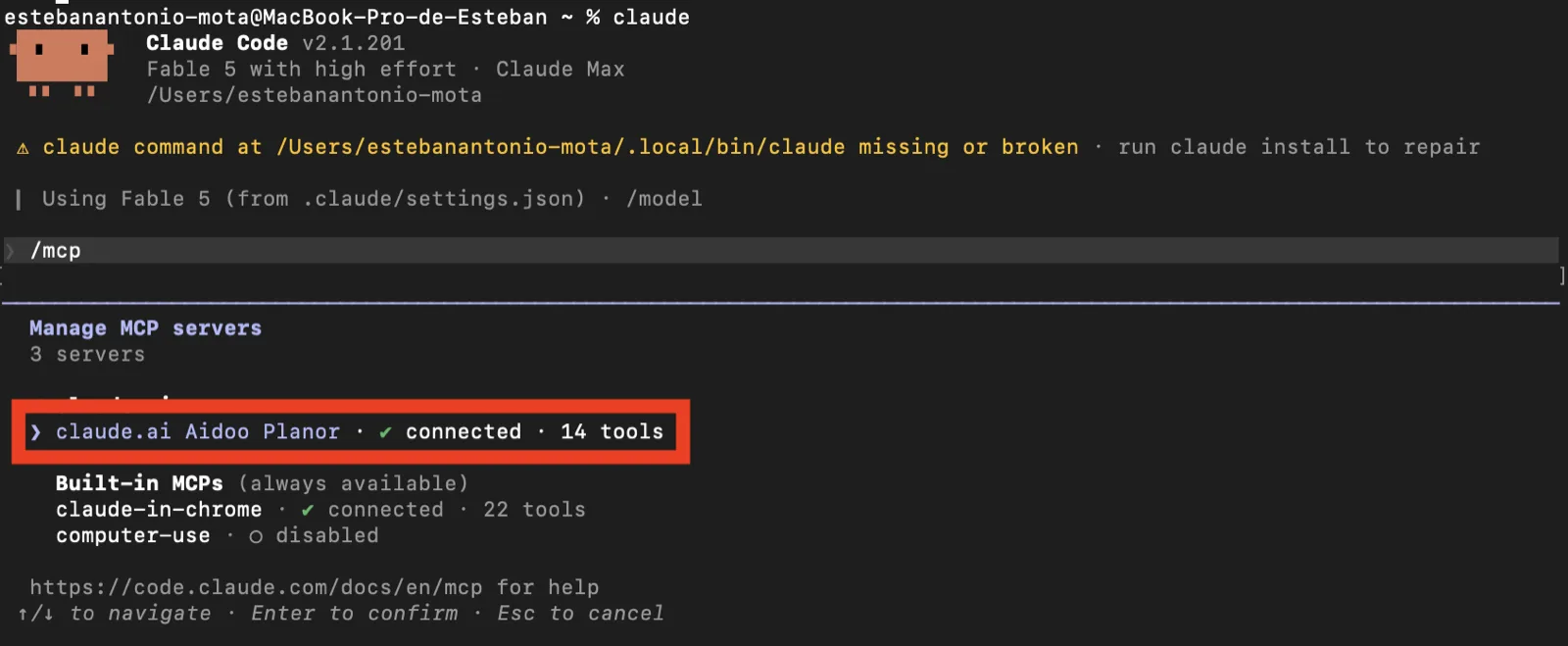 The /mcp command confirms "Aidoo · connected · 14 tools".
Security deserves attention. The MCP requires, according to the Anthropic documentation, explicit approval for each tool access. On your side, you remain the data controller under the GDPR: you decide the purposes and the means. So choose a connector that logs accesses and respects that framework.
📌 Keep in mind A good connector "sees" your data only when you ask, and logs every action. Aidoo's pricing includes this compliance work.
Step 4: Describe the change to the AI
This is the simplest and most rewarding step. You drag the downloaded dashboard.json file into your assistant's window, then write your request in plain English, as you would to a colleague.
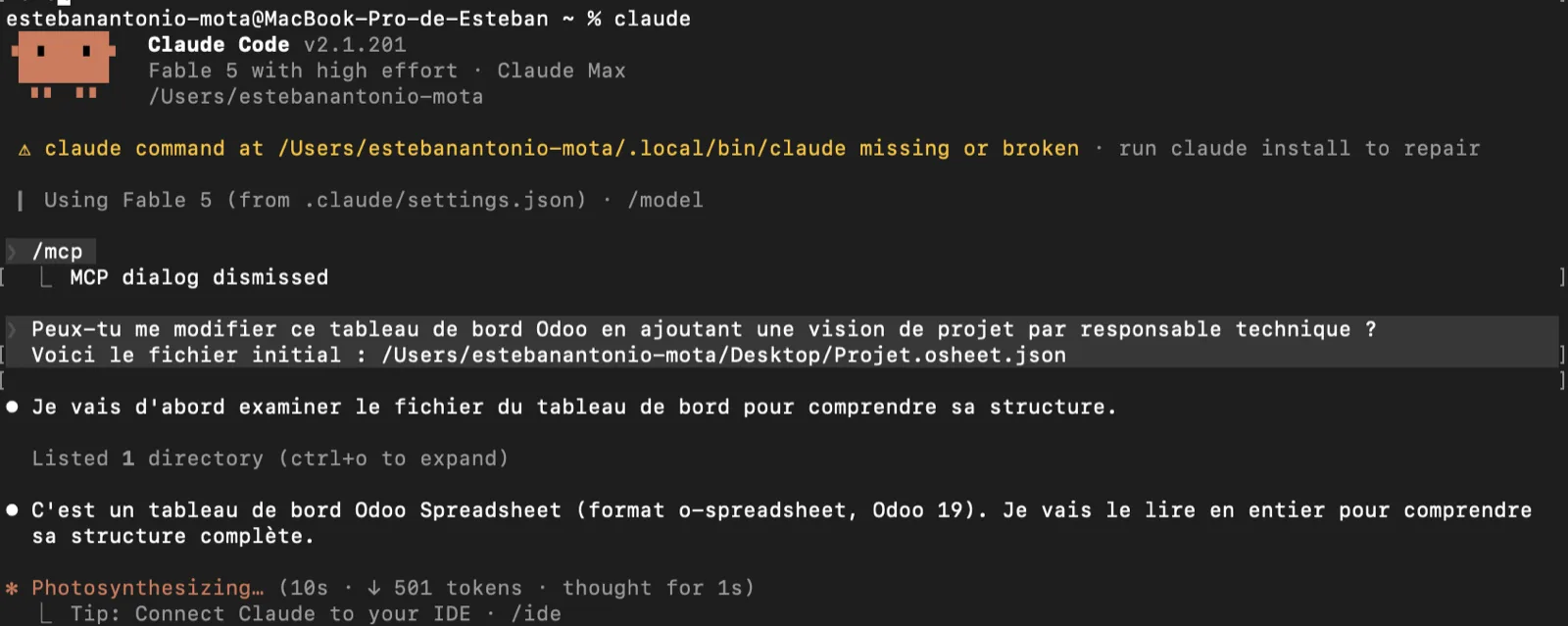 For example: "Can you edit this Odoo dashboard by adding a project view per technical lead?"
The AI then reads the file, queries your Odoo through Aidoo to fetch the real data, runs the calculations, and rewrites the dashboard. You see the detail of its work scroll by: reading the file, calling the Aidoo connector, writing the new spreadsheet.
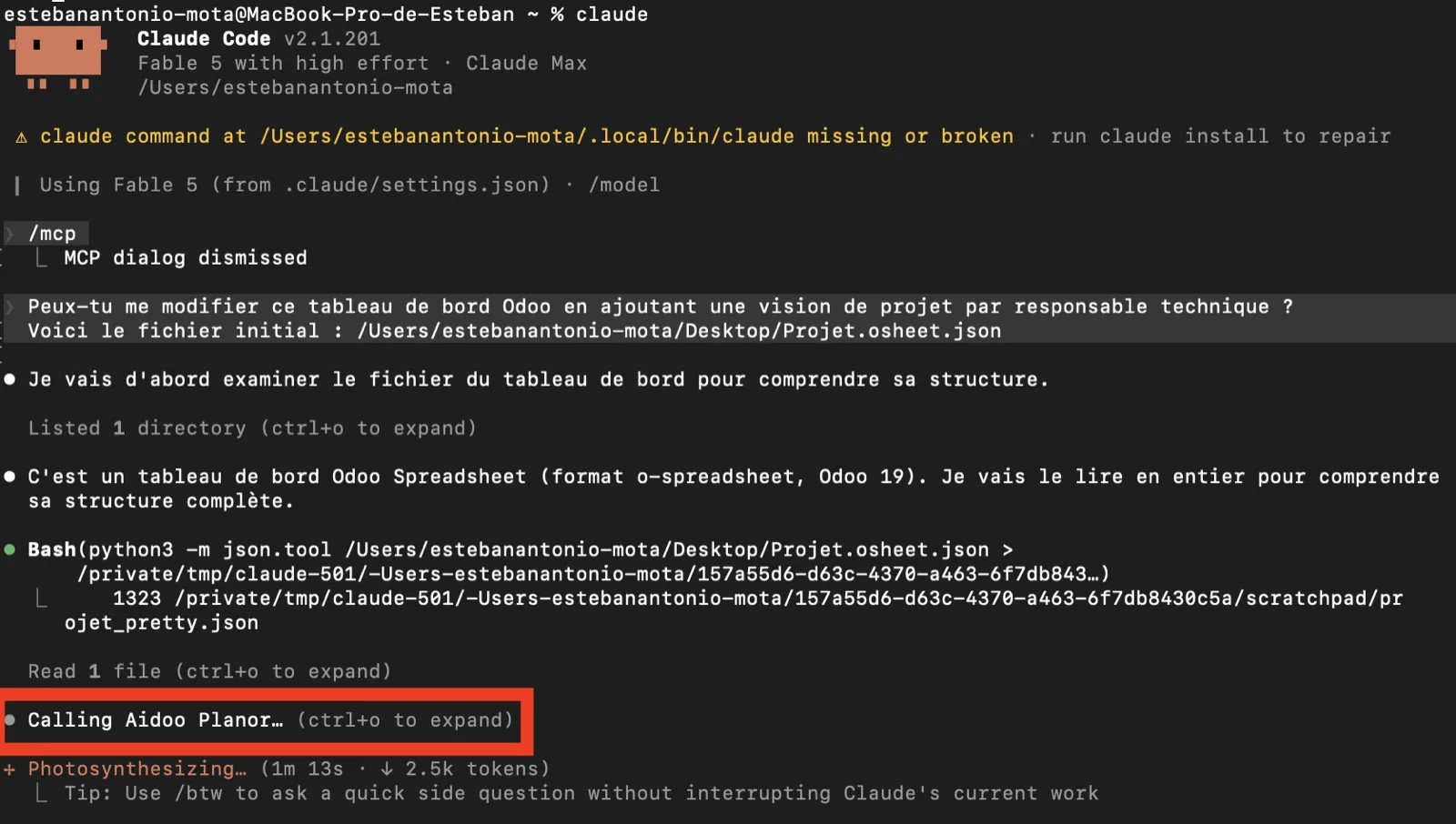 The assistant reads the file, then queries your Odoo ("Calling Aidoo").
Step 5: Put the adjusted spreadsheet back into Odoo
The last step: bring the file produced by the AI back into Odoo. For a published dashboard, everything happens in the Dashboards app.
- Open the Configuration → Dashboards menu.
- Select the relevant dashboard.
- Find the Spreadsheet file field, then click the pencil icon to replace the file with the new JSON.
- Save.
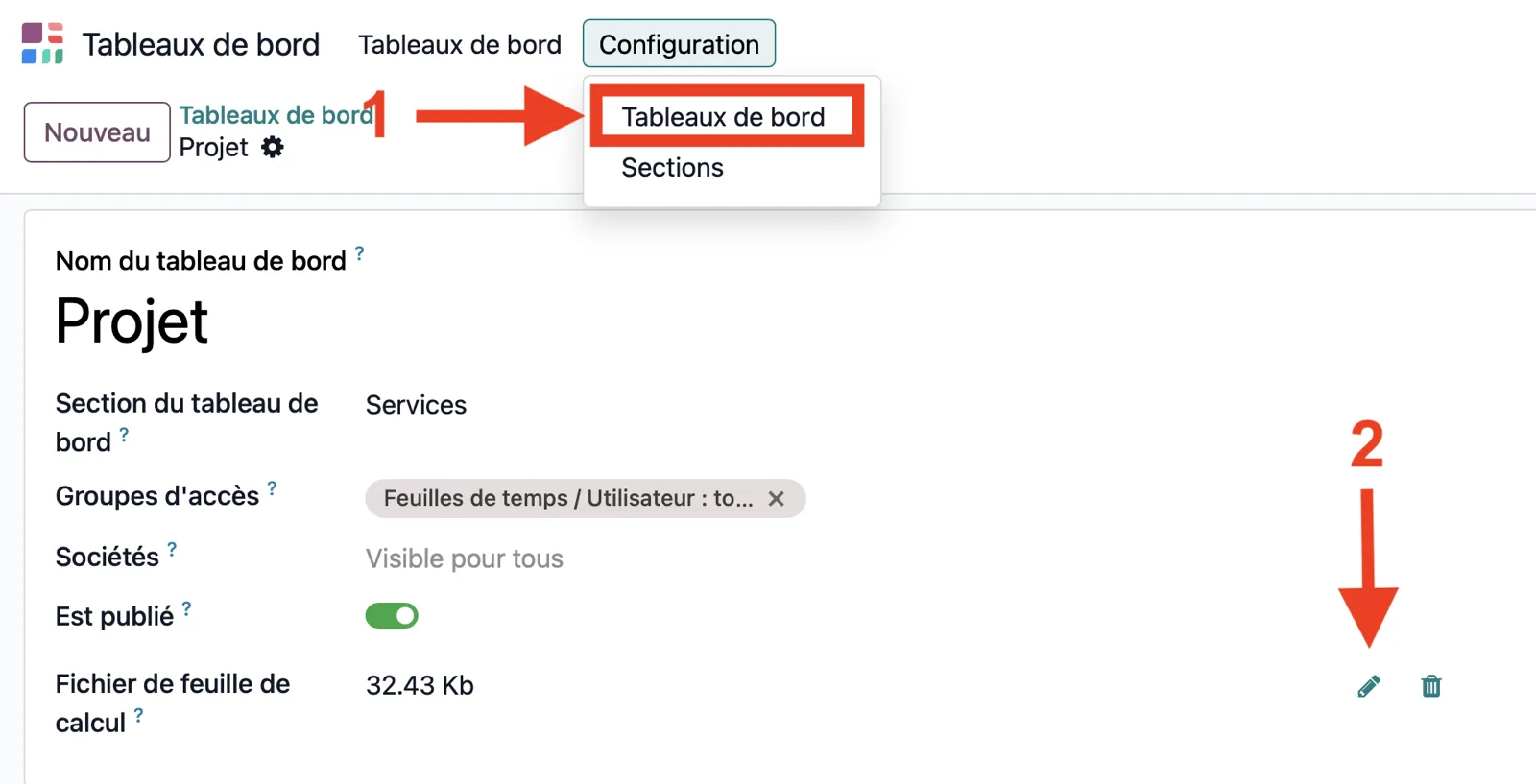 In Configuration → Dashboards, replace the Spreadsheet file with the generated JSON (pencil icon).
Odoo then rebuilds the dashboard with your new view, visible to every authorized user. You get a fully working spreadsheet, editable like any other. For a standalone sheet, the drag-and-drop import in the Documents app also works.
💡 Tip Keep the old JSON file before replacing it. That way you can roll back if the new layout does not suit you.
FAQ: your questions answered
Do I need to code to edit an Odoo dashboard with AI?
No. You describe the change in plain language. The AI reads the JSON file and rewrites it. The only technical step is turning on developer mode, which takes one click.
Is developer mode risky for my data?
No, turning it on changes nothing. It only reveals advanced options, including the JSON export. Just avoid touching other technical settings you do not know.
What is the MCP, in one sentence?
The Model Context Protocol is an open standard that lets an AI talk to your business tools, like Odoo, through a single secure channel, with your approval.
Does my data leave Odoo?
The AI accesses your data only when you ask, through the connector, and every action is logged. You remain the data controller under the GDPR. A serious connector respects that framework.
Which Odoo versions are compatible?
The spreadsheet JSON export is available on recent Odoo versions (18 and 19) in developer mode. Check for the Download as JSON option in the File menu.
What's next?
Editing an Odoo dashboard no longer requires a developer's schedule or a service budget. In five steps, you move from the JSON export to a spreadsheet rewritten by AI, then put back into Odoo. Developer mode unlocks the export, the JSON format makes your dashboard readable, the MCP links the AI to your data, and the Aidoo connector orchestrates it all.
The same principle extends to other tasks: reports, follow-ups, record updates. The dashboard is only a first step.
Do you have an Odoo project, or want to make the most of your ERP with AI?
Book fifteen minutes with the Aidoo team to scope your use case. No commitment, just a useful conversation.
External sources
- Odoo: Developer mode (20.0 documentation): enabling debug mode.
- Odoo: Spreadsheet (20.0 documentation): JSON export and import.
- Anthropic: Introducing the Model Context Protocol: the MCP standard announcement.
- McKinsey: The State of AI 2025: enterprise AI adoption.
- GDPR: official text portal: data protection framework.